How to Fix Green Skin Tones in Lightroom (Step-by-Step) | Turn Flat, Yellow or Dull Tones into Natural Skin
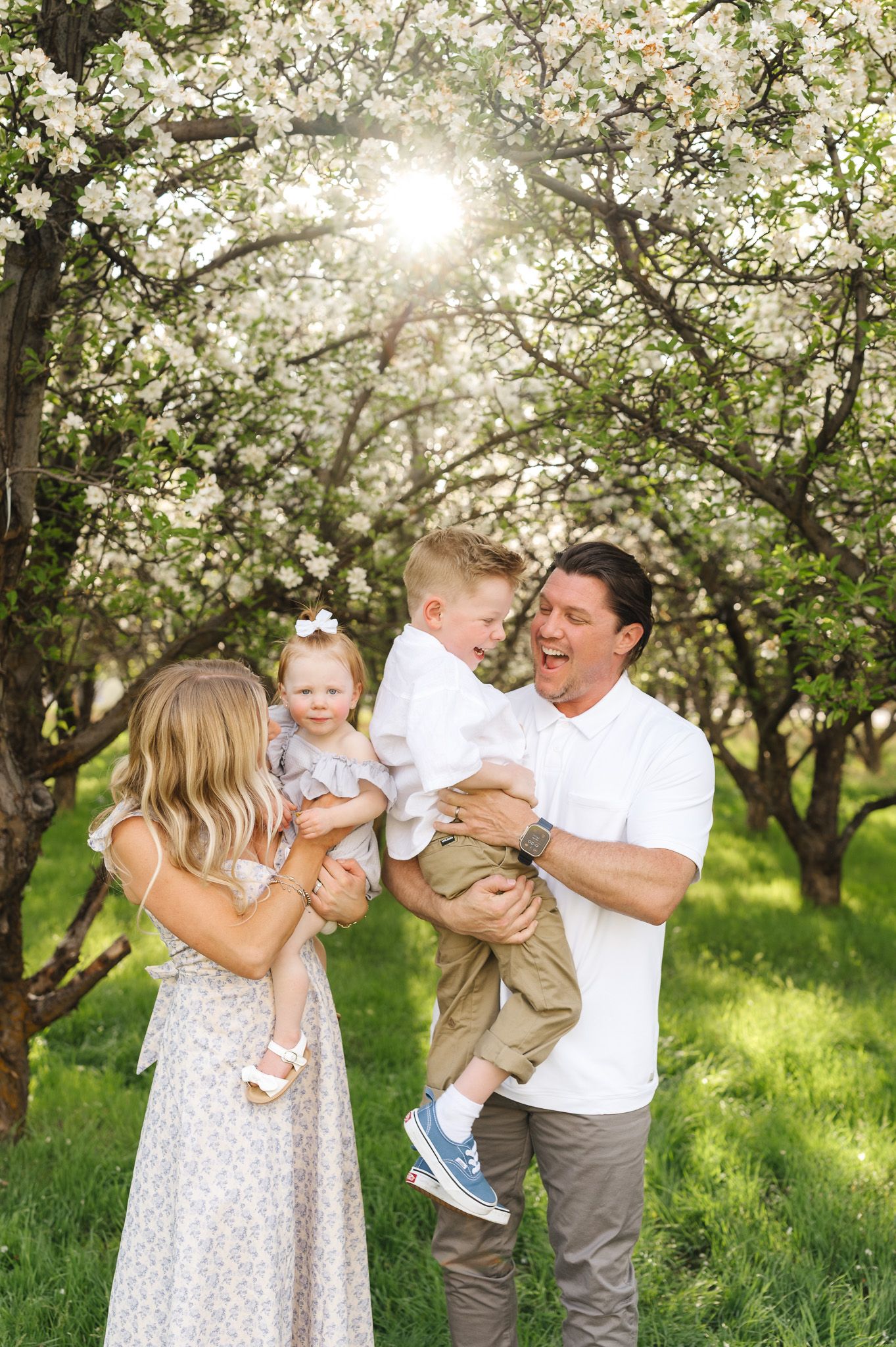
I remember doing a session on the edge of an orchard with blossoms scattered throughout the trees. The sun was setting to my left, reflecting yellow and green tones onto my clients’ faces and clothing.
I remember thinking, “I’ll fix that when I edit later…” I couldn’t move them—there were too many people, and the spot I usually use didn’t have any blossoms.
But that decision led to a lot of frustration later on—adding multiple masks to each image, trying to desaturate certain areas, cool things down, and add magenta back in. It was time-consuming and honestly just exhausting.
Green skin tones are one of the most frustrating issues photographers run into when editing outdoor photos. You take a beautiful image in natural light… and suddenly the skin has a subtle green cast that not only doesn’t look natural, but also makes it much harder to correct.
So, if you’ve ever looked at your photos and thought, “how can I save this?”—you're not alone. The good news is it’s fixable with a few intentional adjustments in Lightroom.
In this post, I’ll walk you through why green tones happen and how to correct them while still keeping skin natural, clean, and true-to-color.
Why Skin Tones Turn Green in Photos
Green casts usually come from environmental light, not your camera settings.
The most common causes are:
- Shooting in areas with heavy grass, trees, or foliage
- Open shade where light is reflecting off surrounding greenery
- Backyards, parks, or forested locations
- Overcast light mixing with green reflections
- Camera automatically balancing for overall scene instead of skin tones
Your camera isn’t doing anything wrong—it’s just averaging all the color in the scene.
And in outdoor environments, green is often the dominant reflection.
How I Capture Images for Better Skin Tones (Before Editing)
- I shoot in manual for full control of exposure, shutter speed, and aperture
- I use Kelvin to control warmth and maintain consistent white balance throughout the session
- I adjust tint as needed, especially in green-heavy environments
- I pay attention to lighting (harsh sun, shade, backlight, haze)
- I slightly underexpose in harsh light and adjust positioning to reduce haze
Once I started shooting with my final edit in mind, everything became more consistent across my galleries.
Even when I’m intentional in-camera, this can still happen—whether it’s clothing reflecting color, different skin tones reacting differently to light, or a mix of cool shadows and warm sunlight.
The Goal When Fixing Green Skin Tones
Before adjusting anything:
- Your goal is NOT to remove all green from the image
- Your goal is to remove green from the skin while keeping the photo natural
If you over-correct, the skin (along with the entire image) will quickly turn:
- magenta
- overly warm
- or flat/gray
STEP 1: Start with White Balance
Before adjusting anything else:
- Adjust Temperature slightly warmer if the image feels too cool
- Adjust Tint toward magenta to counteract green
- This is the most important adjustment for green tones
- A small shift goes a long way
- Watch the skin—not the background
If the background still looks green after this step, that’s okay. We’ll handle that separately.
This is the foundation before you start fine-tuning.
If you find yourself making these same adjustments in every session, this is exactly why I created presets—to give you a consistent starting point so you’re not fixing green tones from scratch each time. You can check them out here.
Step 2: Refine HSL (Only If Needed)
If green is still showing up:
Go into HSL / Color Mixer
Focus on:
- Green:
- Hue (adjust based on whether the greens feel too cool or too warm)
- Saturation (slightly reduce)
- Luminance (adjust depending on whether the tones feel too dark or too bright)
- Yellow:
- Hue (adjust based on whether the greens feel too cool or too warm)
- Saturation (if it’s bleeding into skin)
- Luminance (to control brightness of warm-green mix)
You can also do this for red and orange—however, this is where people often over-edit and create unnatural skin, so small adjustments only.
Step 3: Use Local Adjustments for Precision (Optional)
If the green cast is only affecting certain areas (like shadows on skin/one side of the face/areas of clothing):
Use a mask (brush or radial filter) and:
- Slightly reduce saturation
- Adjust tint toward magenta
- Fine-tune exposure if needed
- Decrease temperature (I've found this to be helpful often)
This helps you fix the issue without affecting the entire image.
Not All Green Casts Look the Same
Green tones can show up differently depending on the environment—and some are more noticeable than others.
For example:
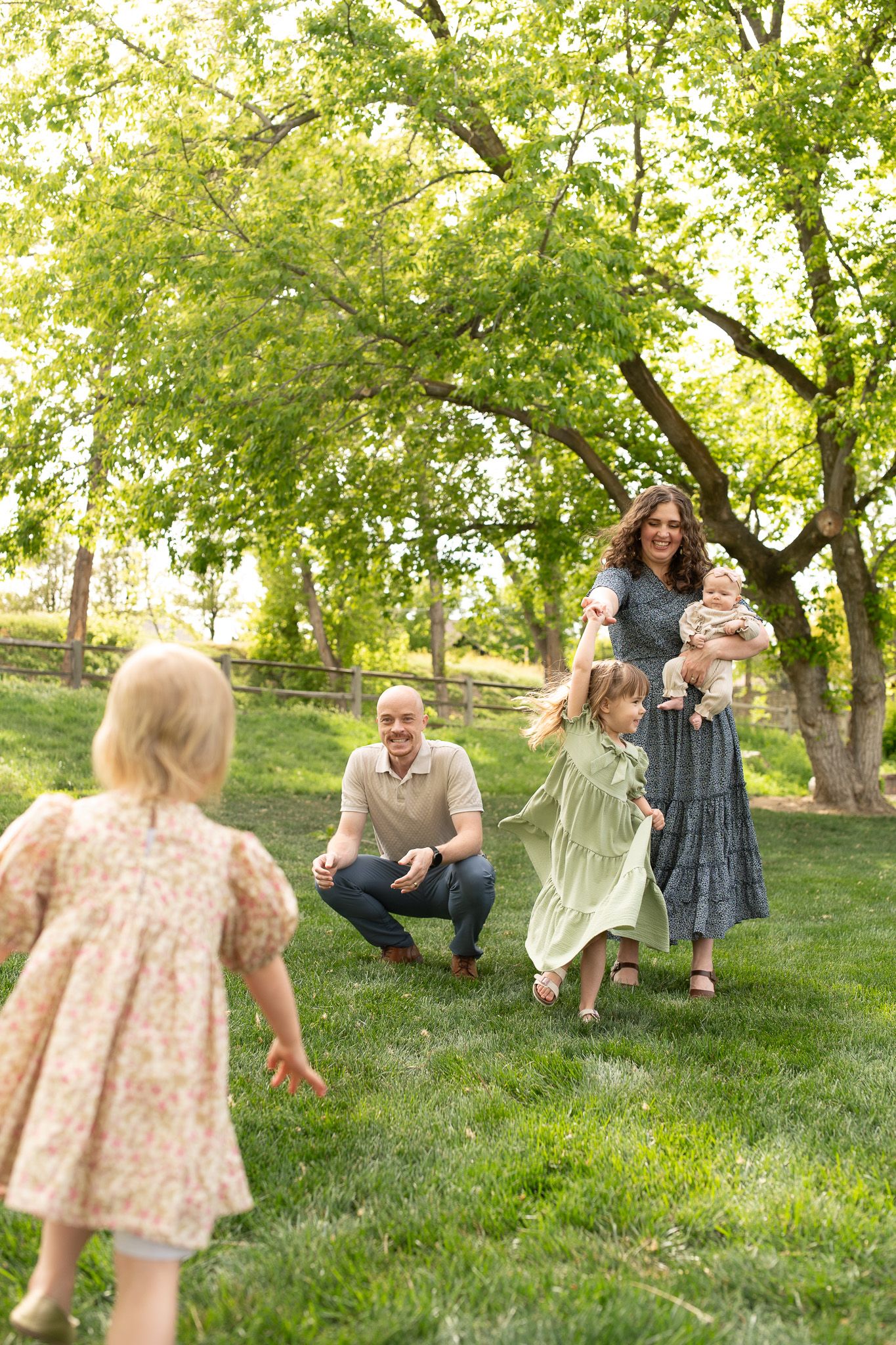
- Bright/neon greens (common in summer grass) can reflect strongly onto skin and make tones look unnatural or overly saturated
- Darker greens (trees or shaded areas) tend to create a more muted, slightly dull or muddy look
- Mixed lighting (sun + shade + greenery) can create uneven color where parts of the skin look different from others
This is why green skin tones don’t always look the same—and why the correction sometimes needs to be slightly adjusted depending on the scene.
Why This Happens So Often in Outdoor Photography
Green tones are especially common because:
- Grass reflects light upward onto skin
- Trees filter sunlight with green wavelengths
- Shade compresses color and exaggerates casts
- Cameras prioritize exposure over color accuracy in mixed light
This is why even properly exposed images can still feel “off.”
It’s not a mistake—it’s just how natural light behaves outdoors.
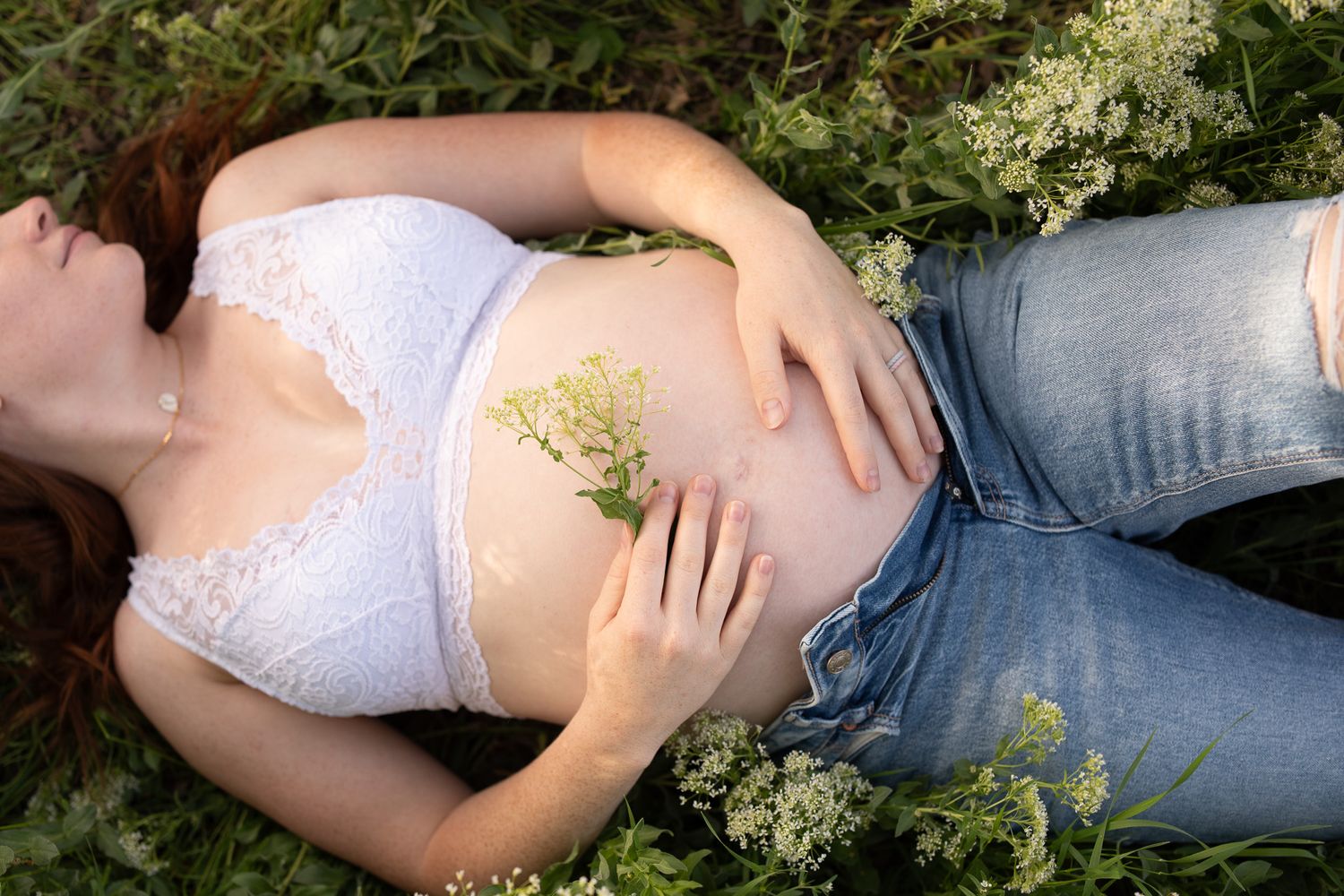
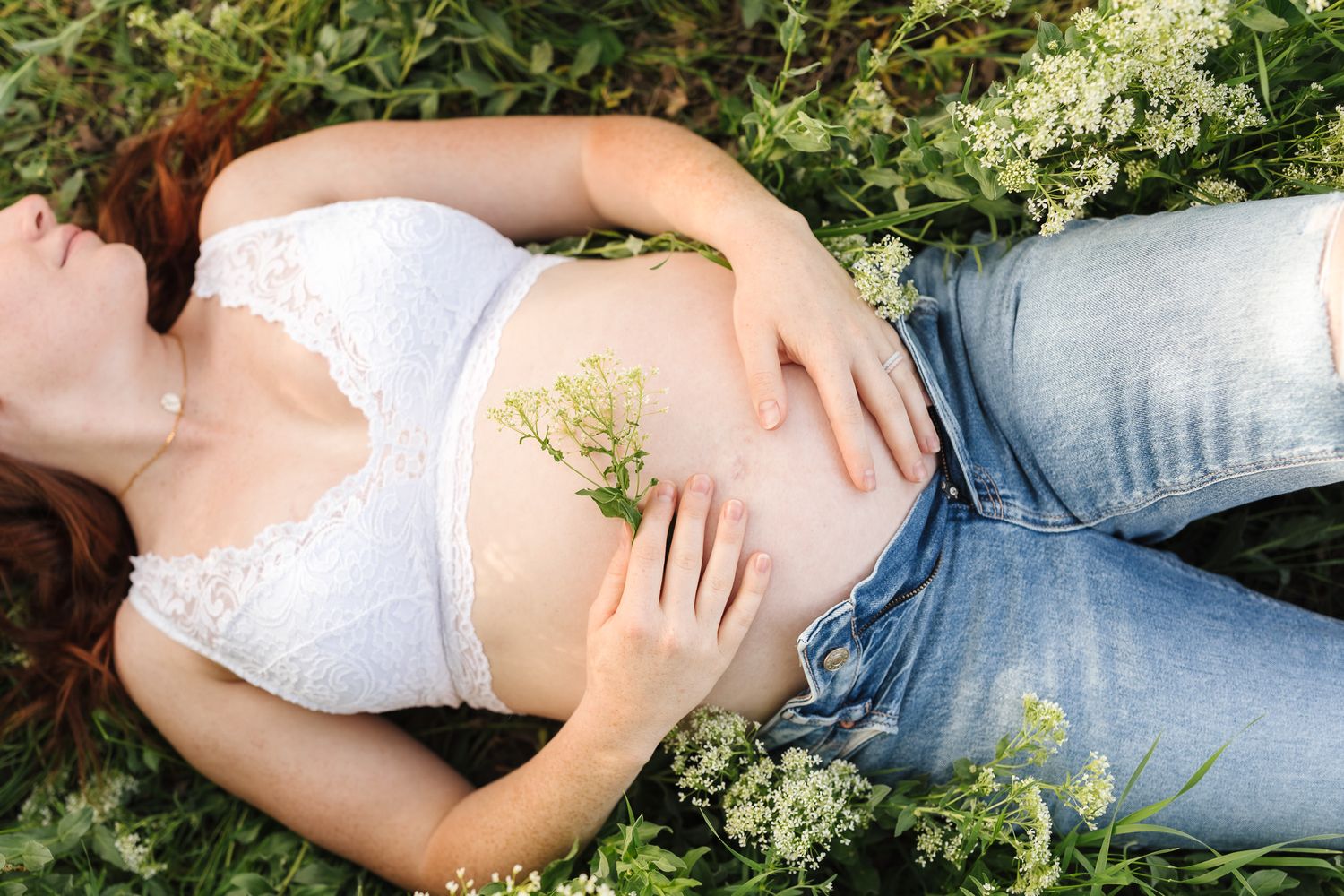
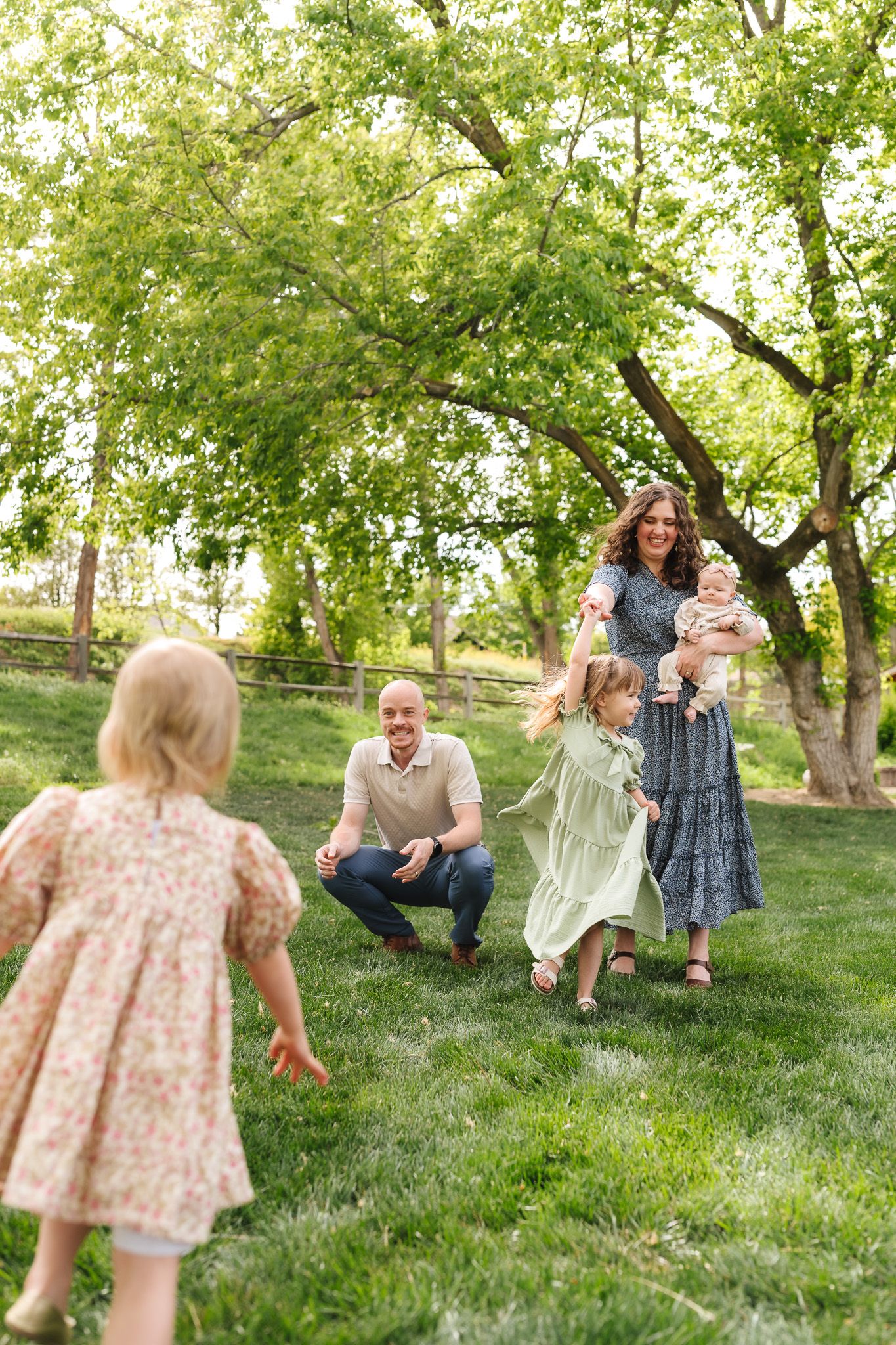
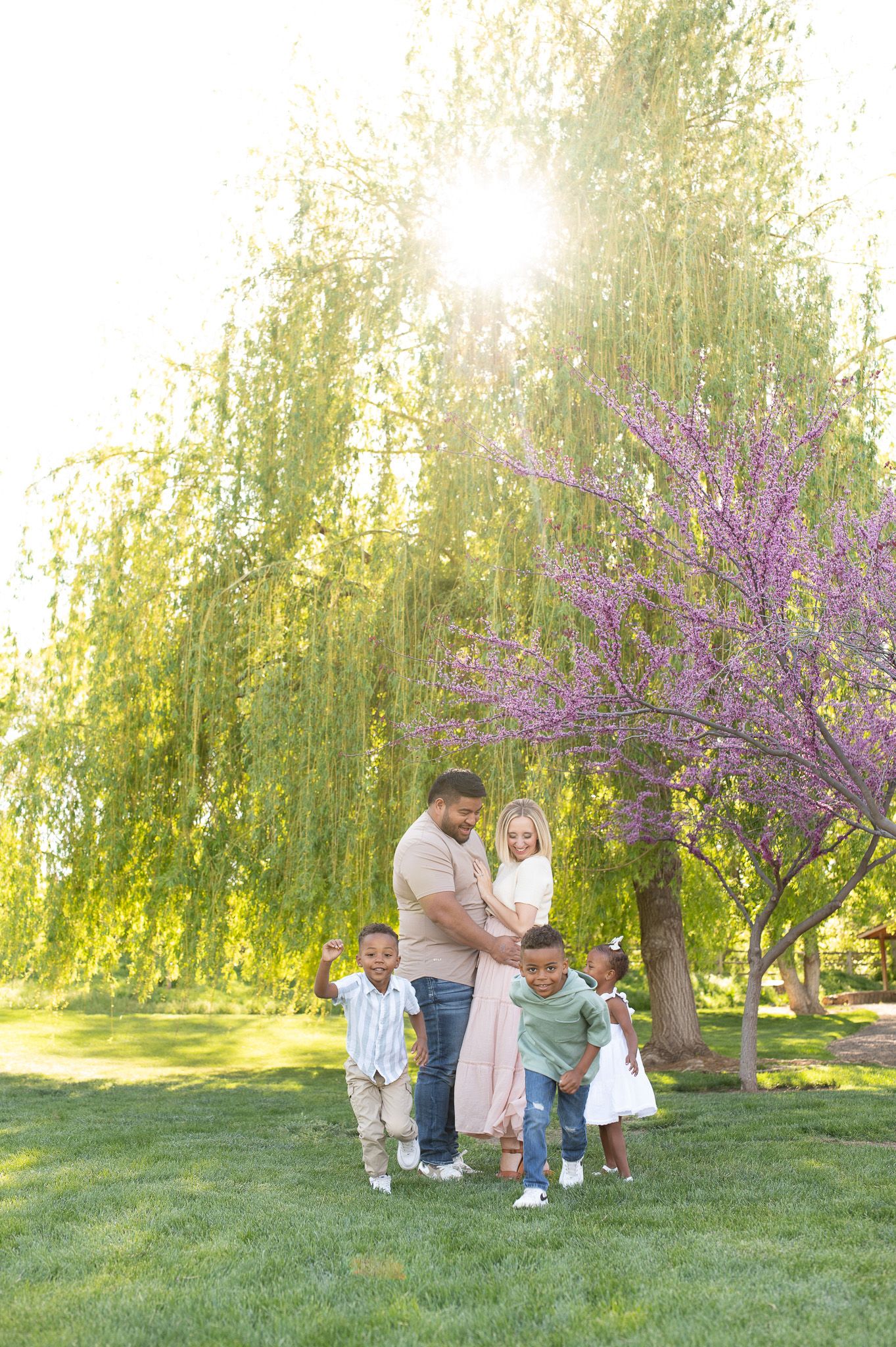
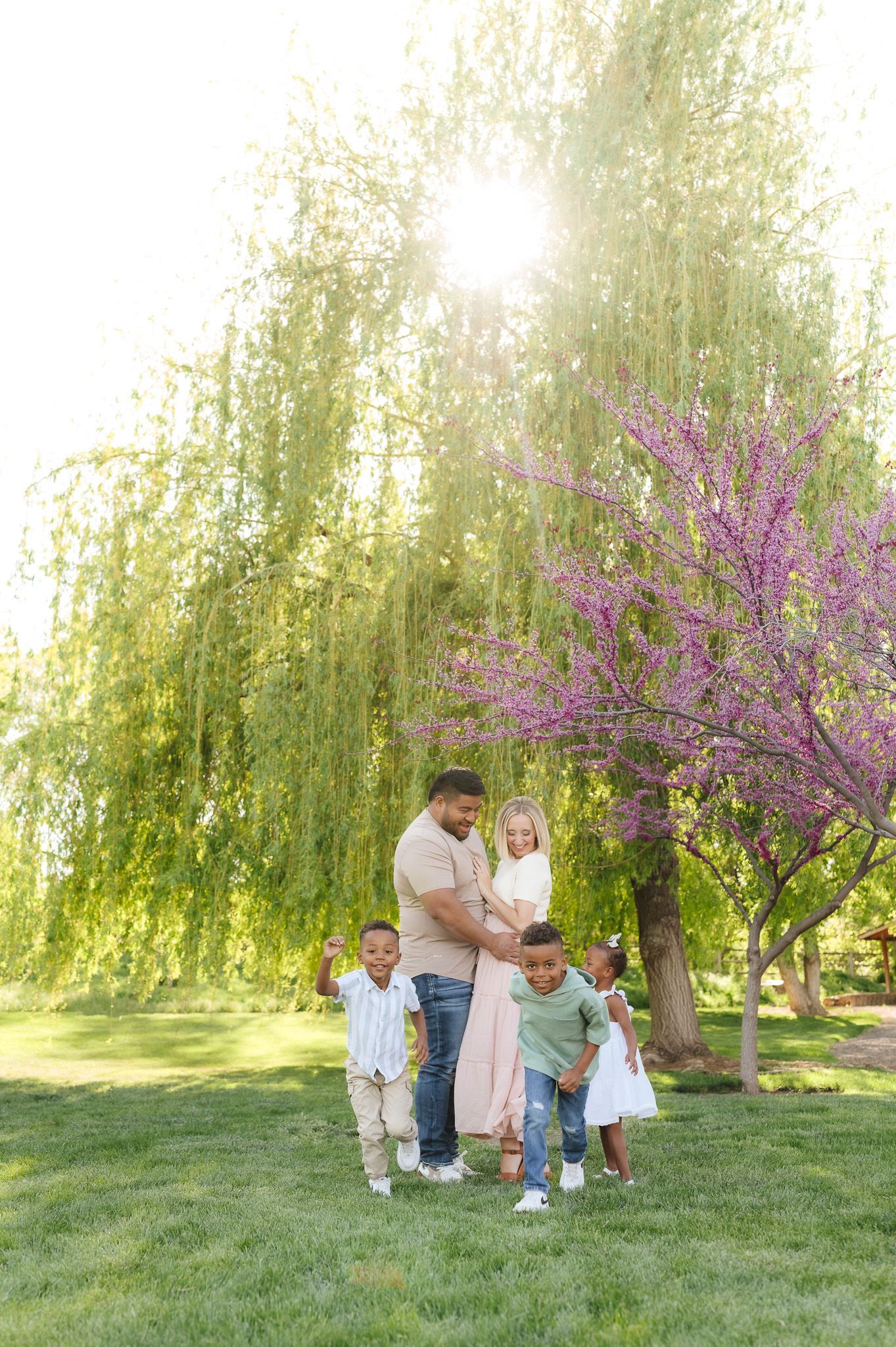
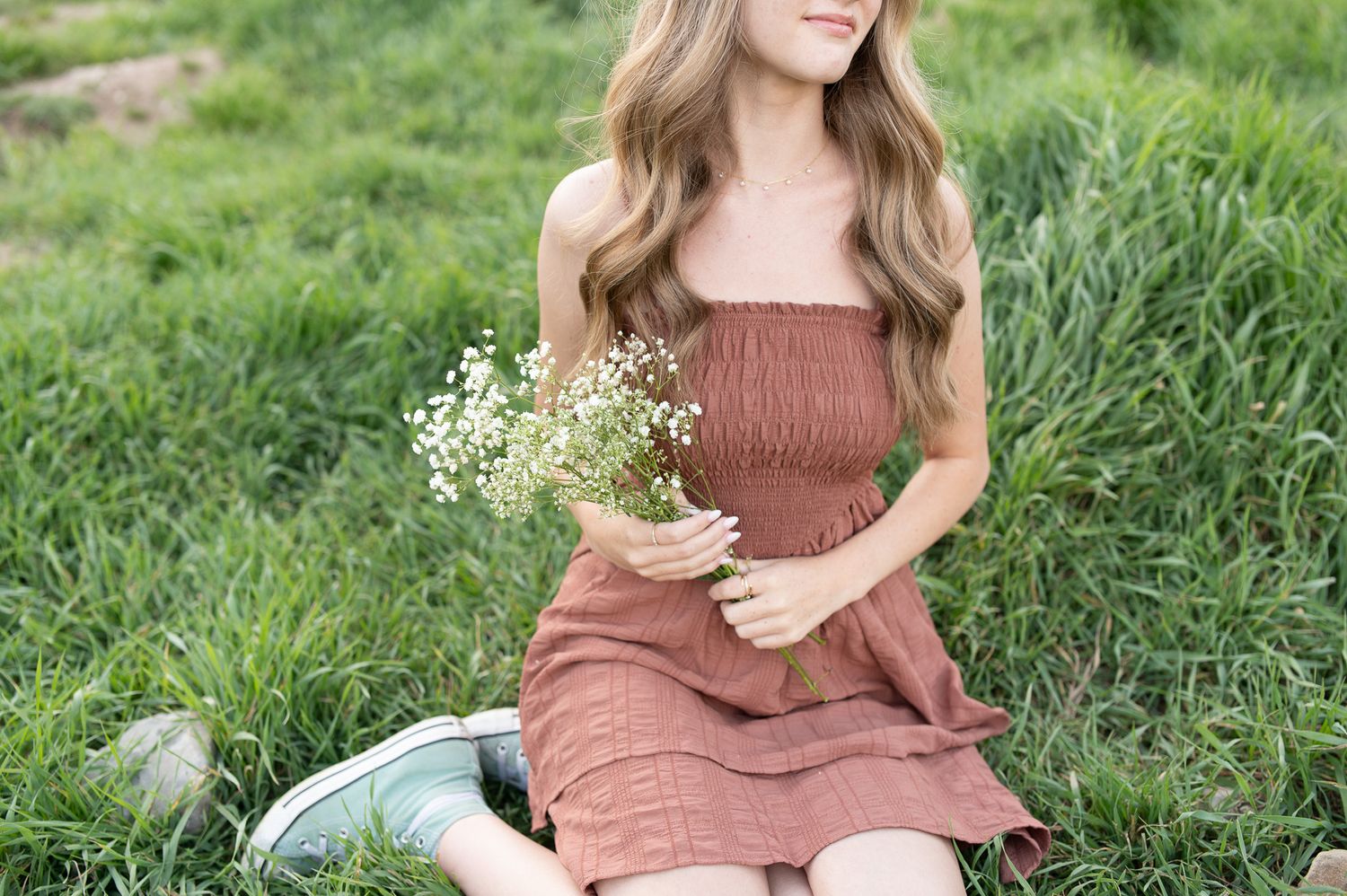
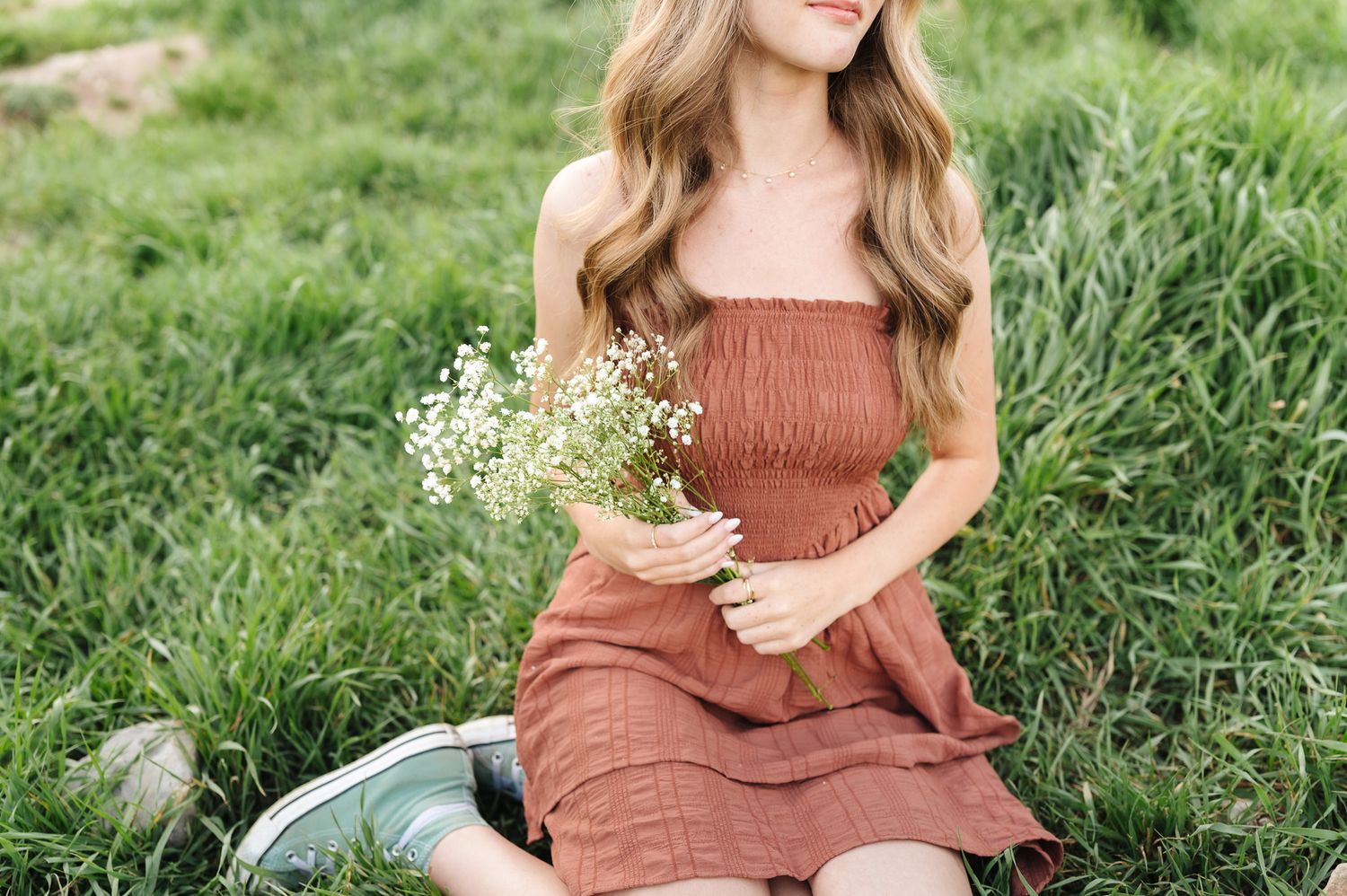
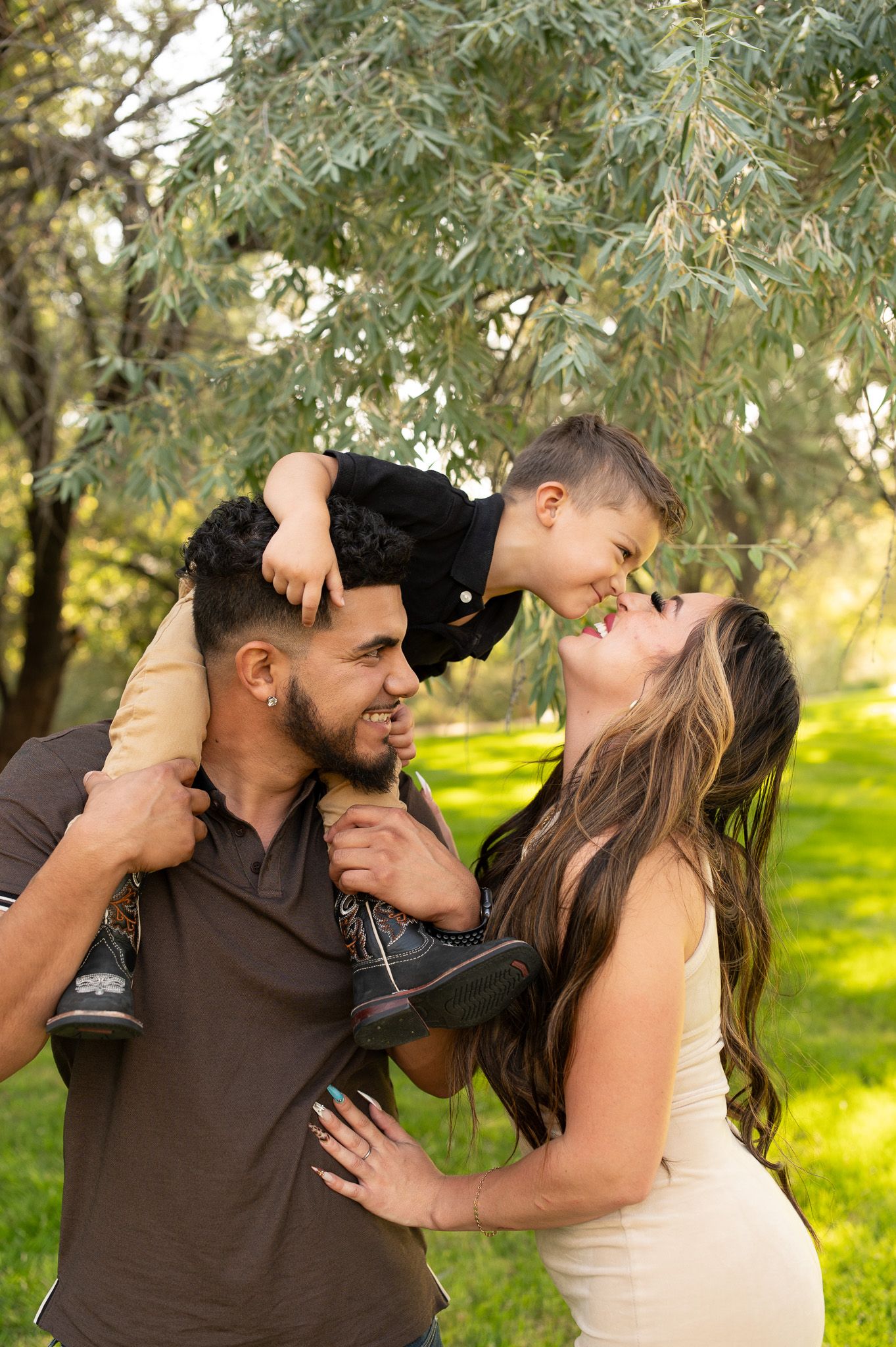
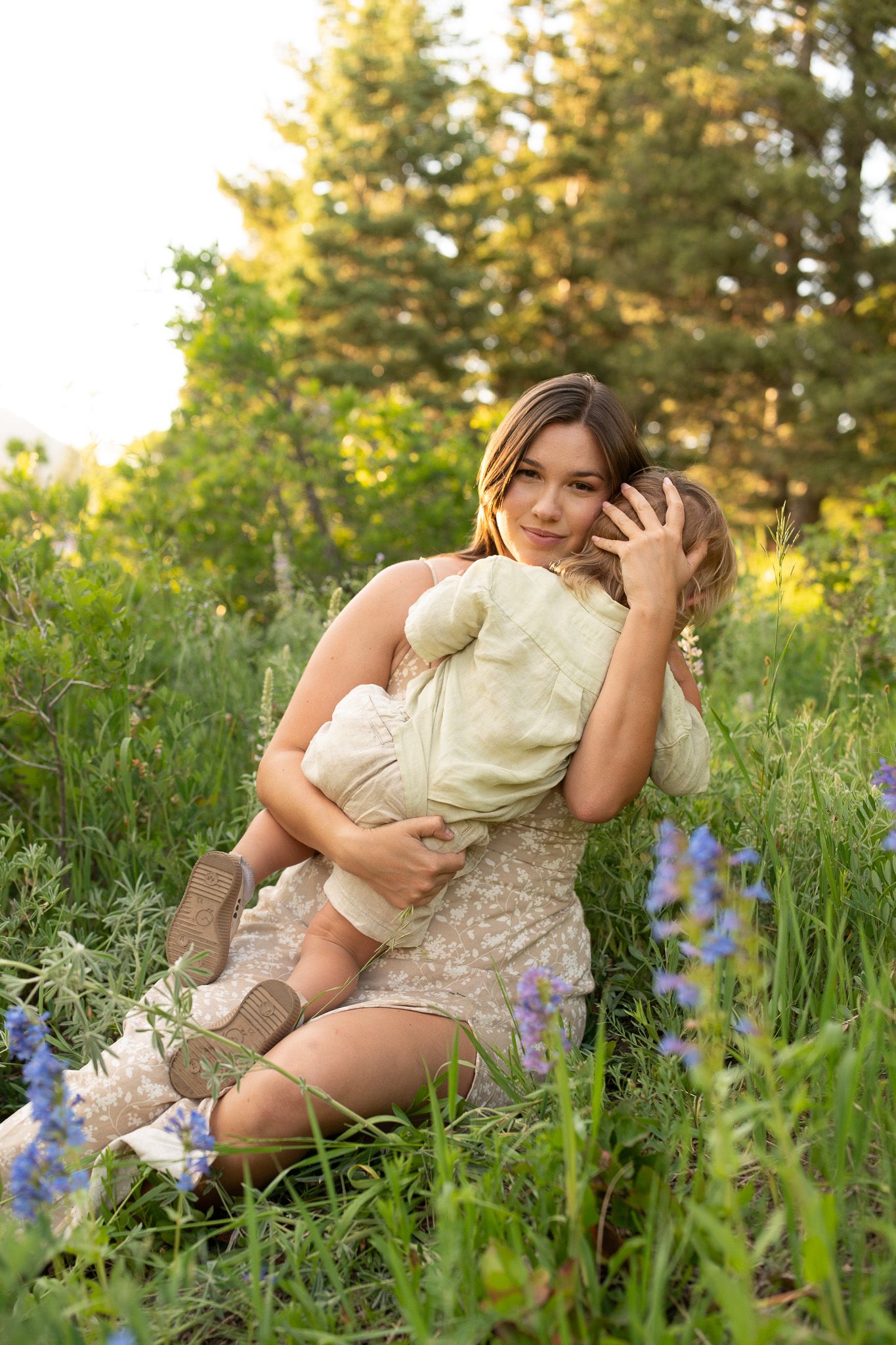
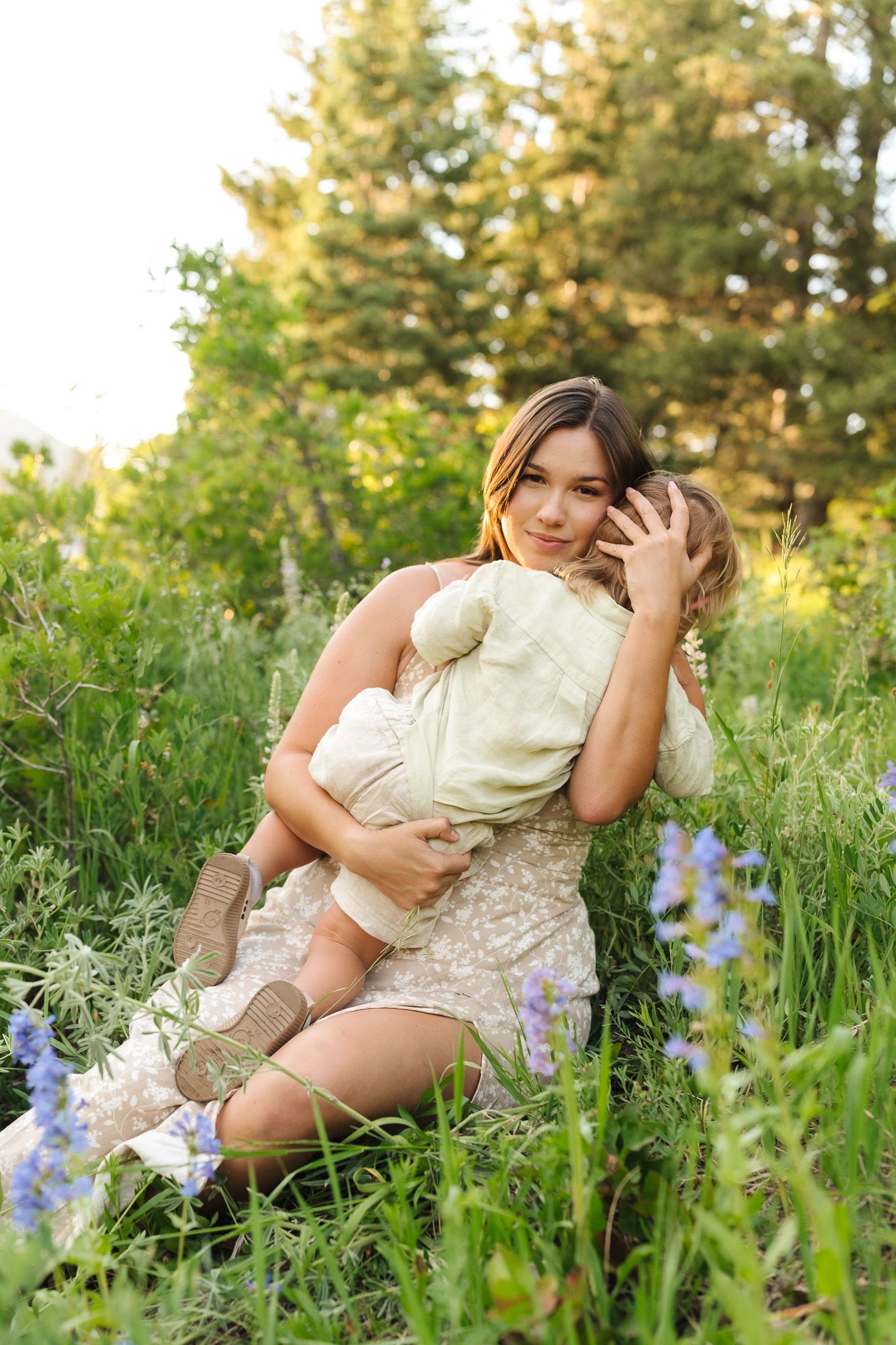
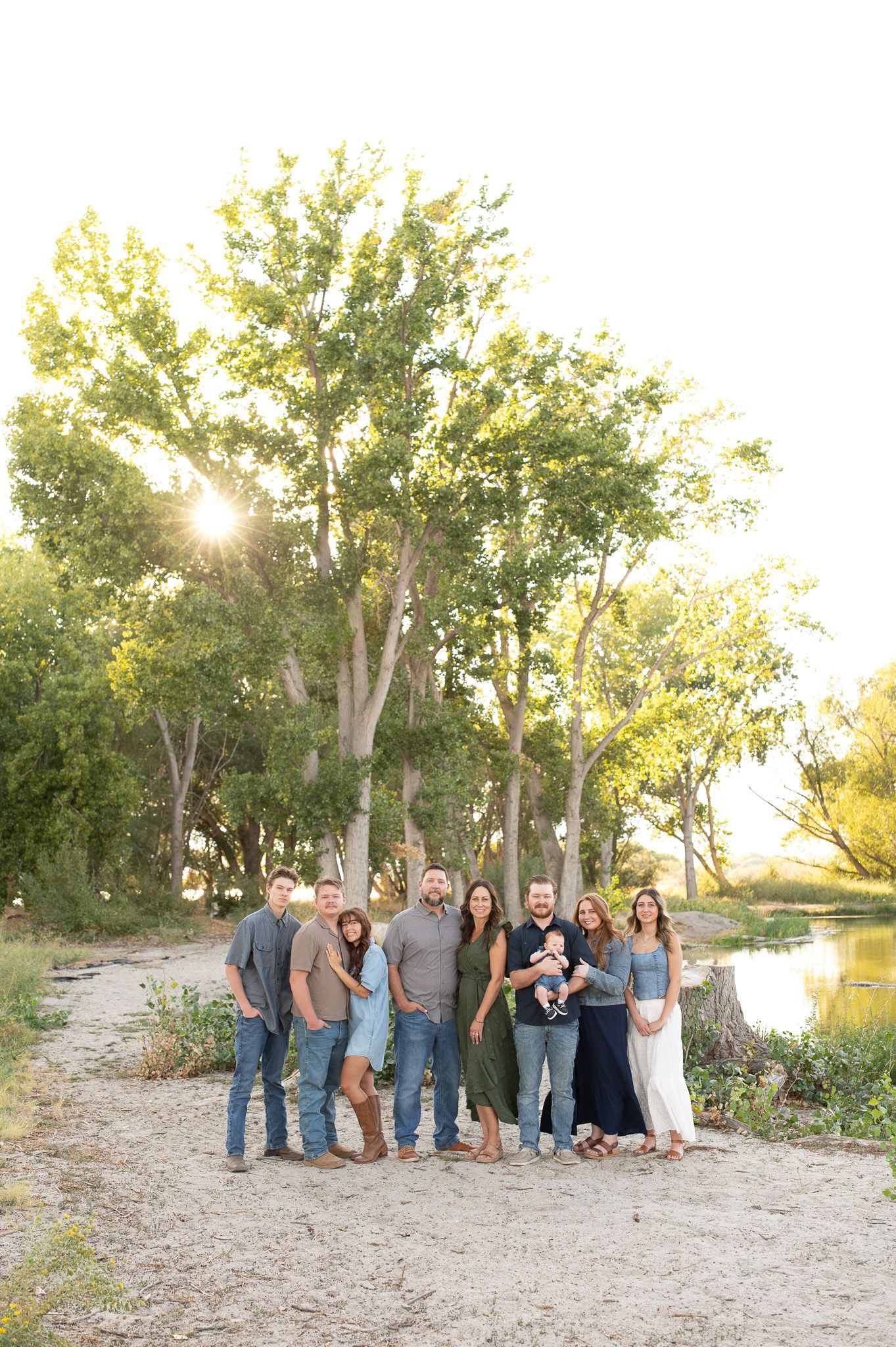
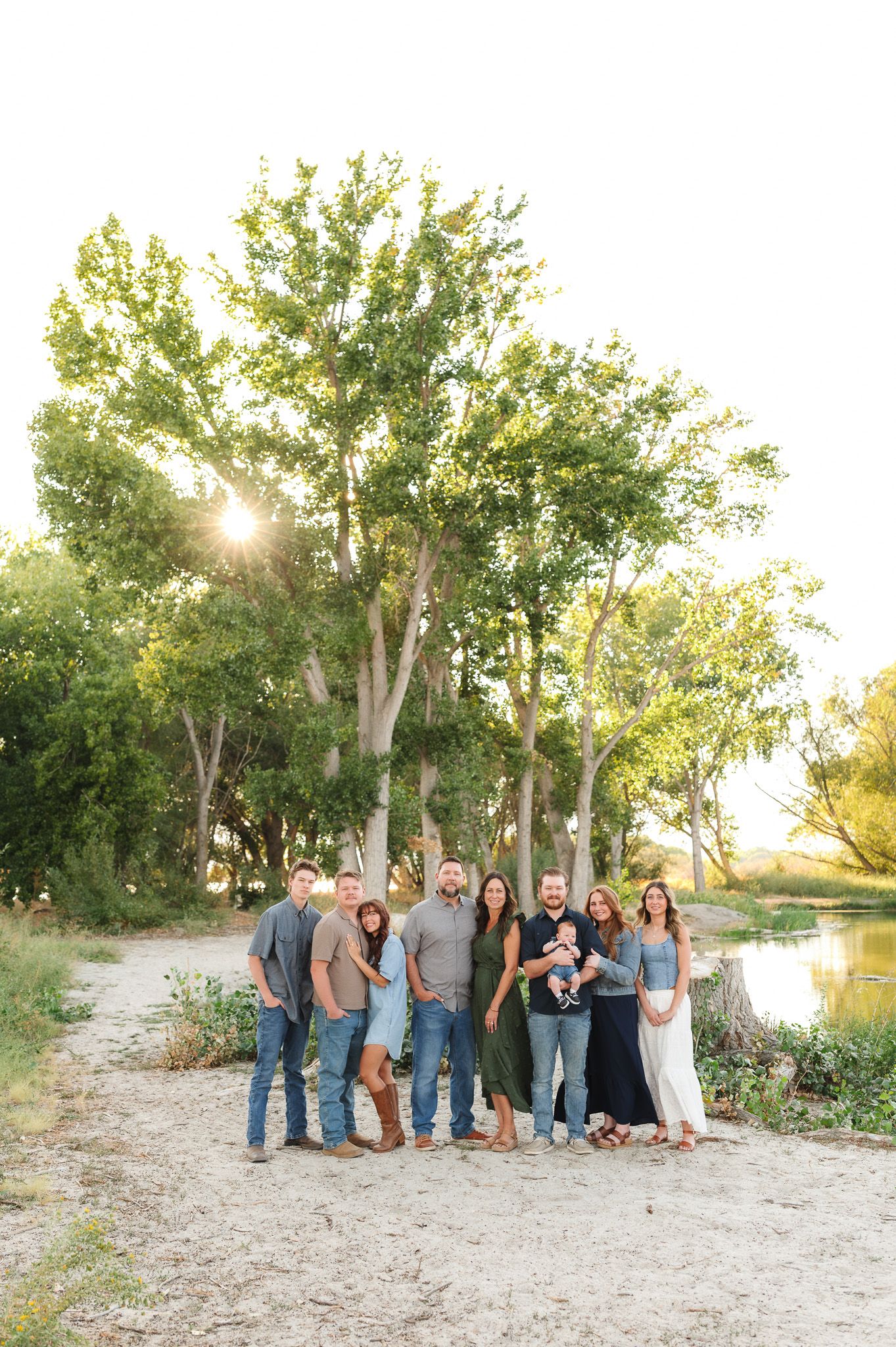
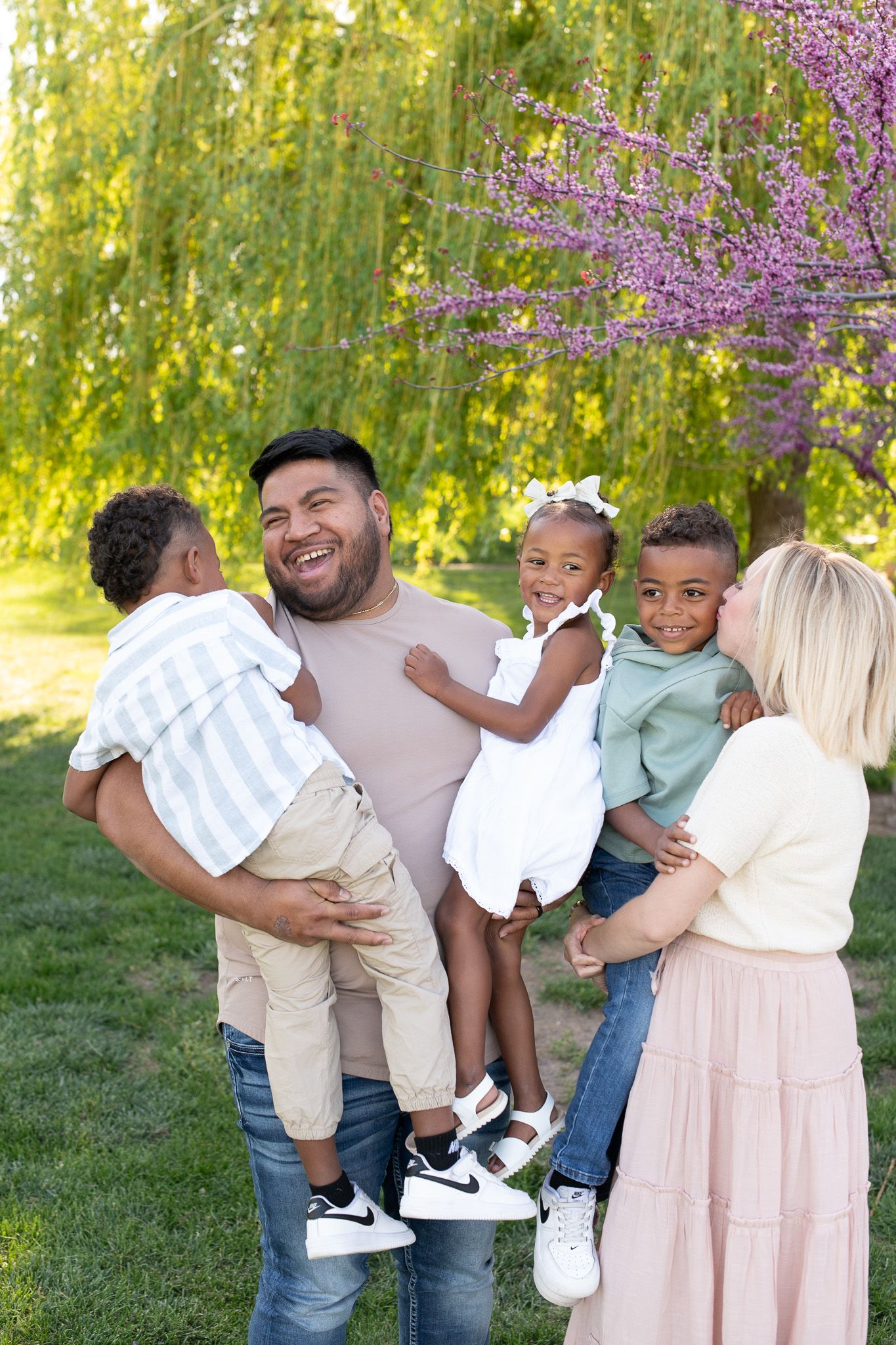
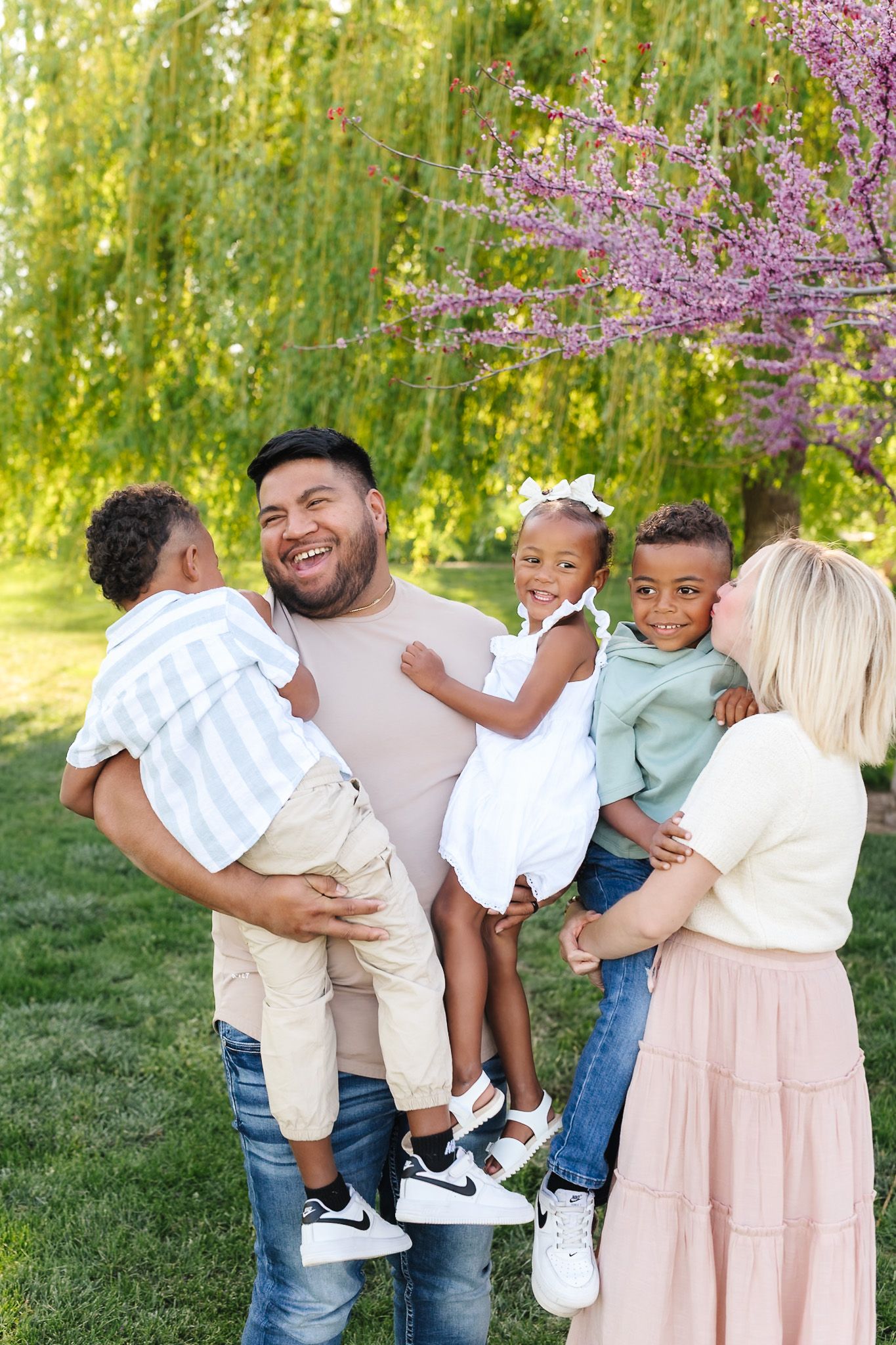
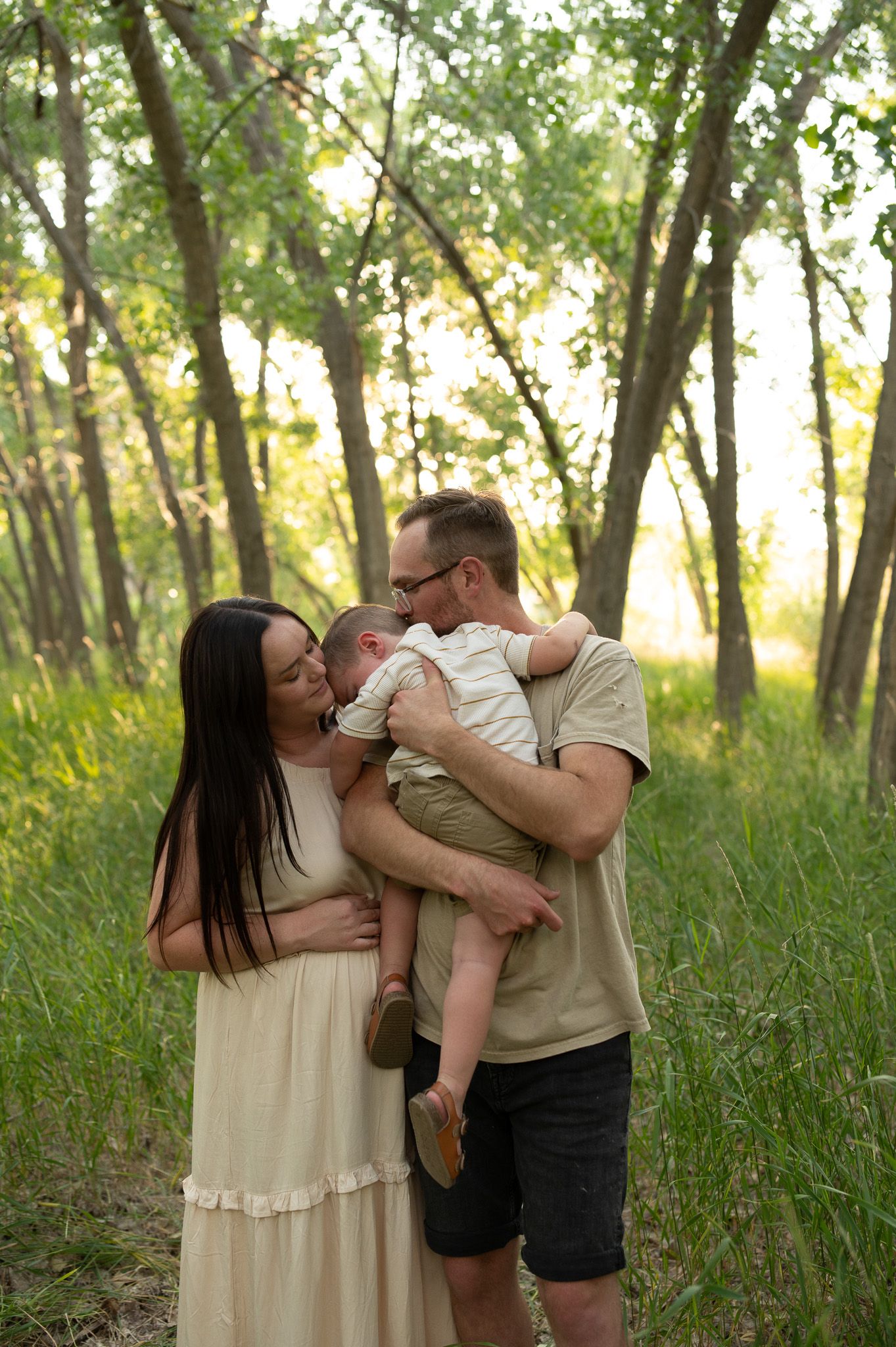
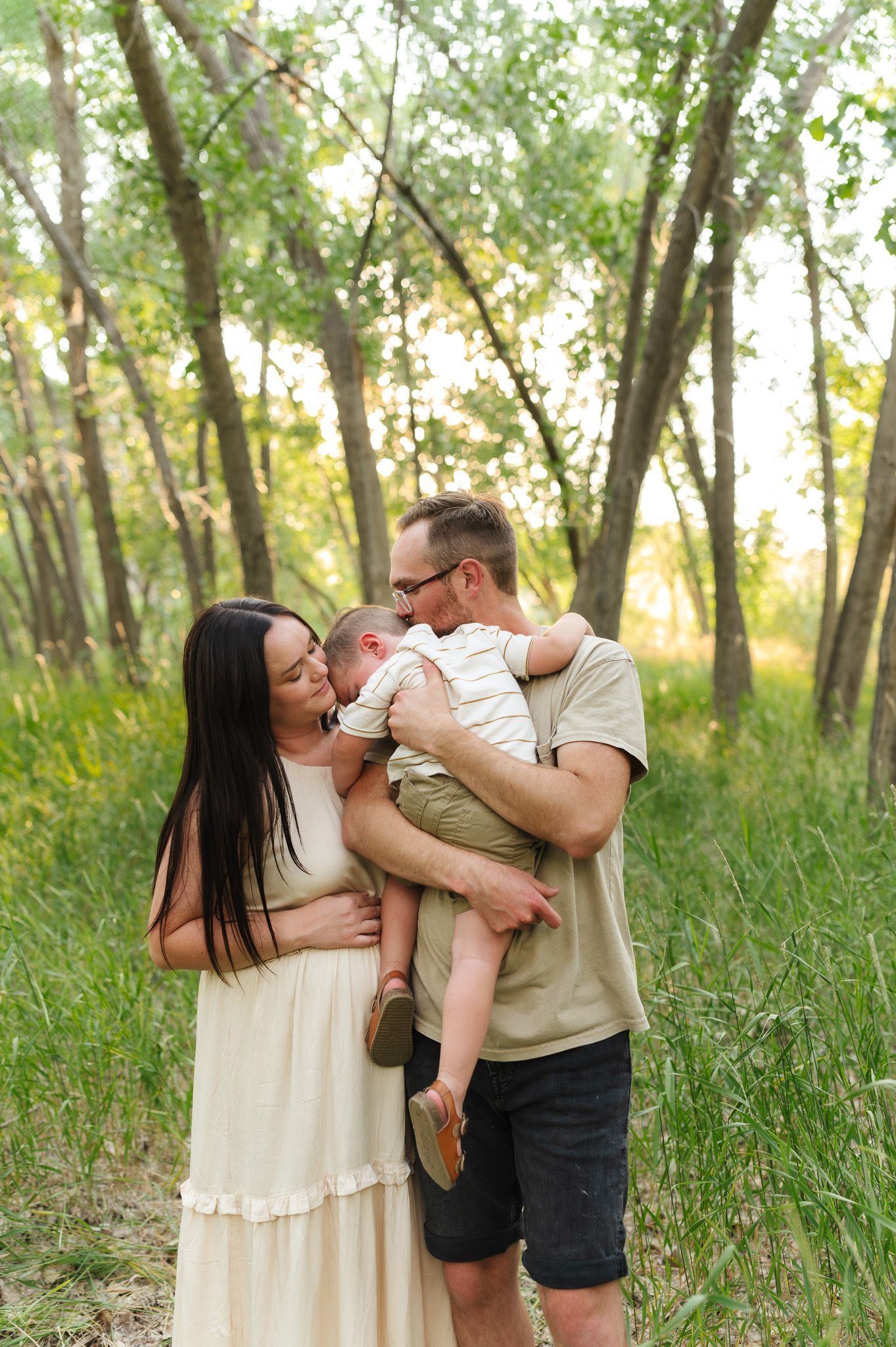
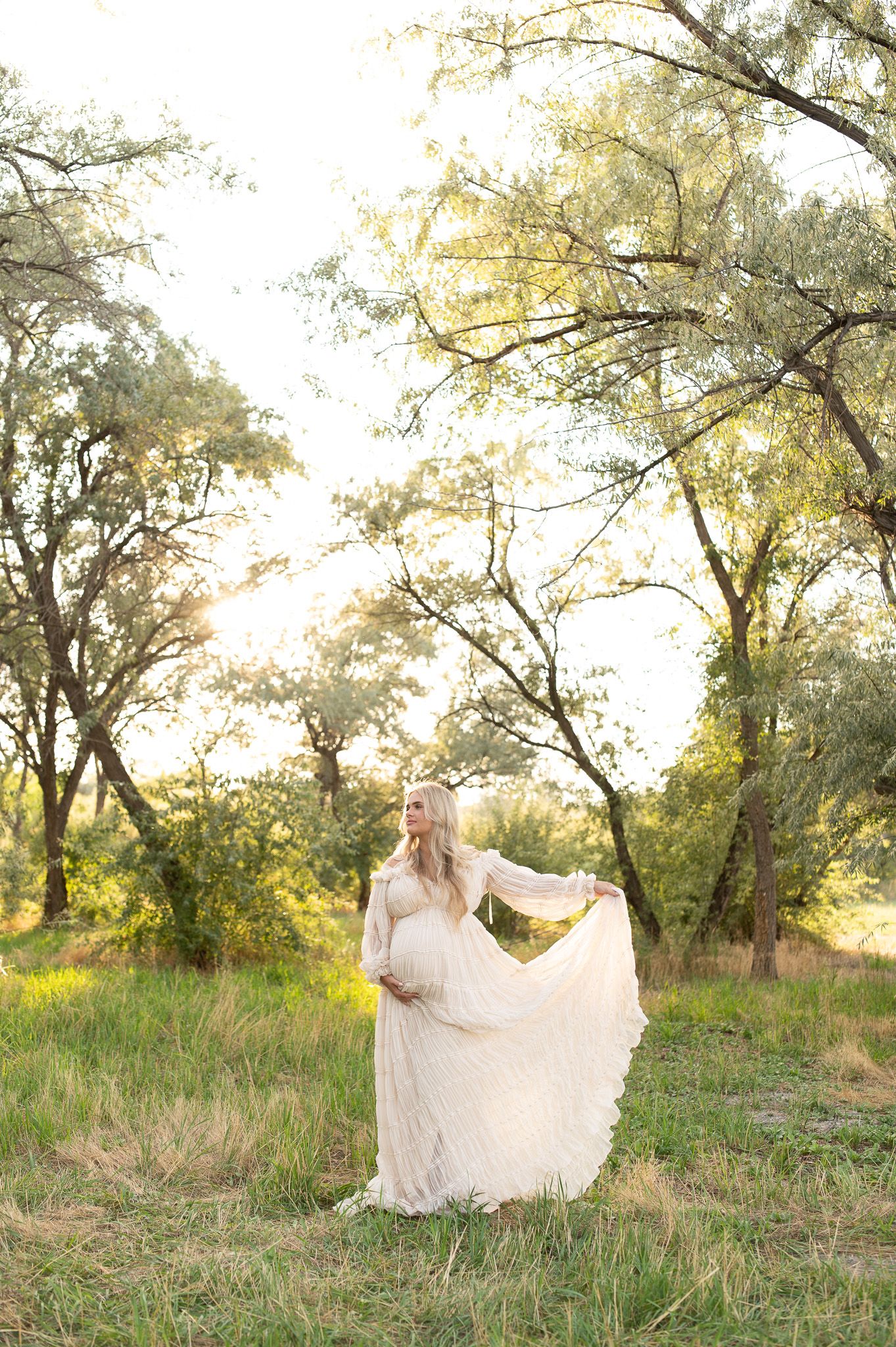
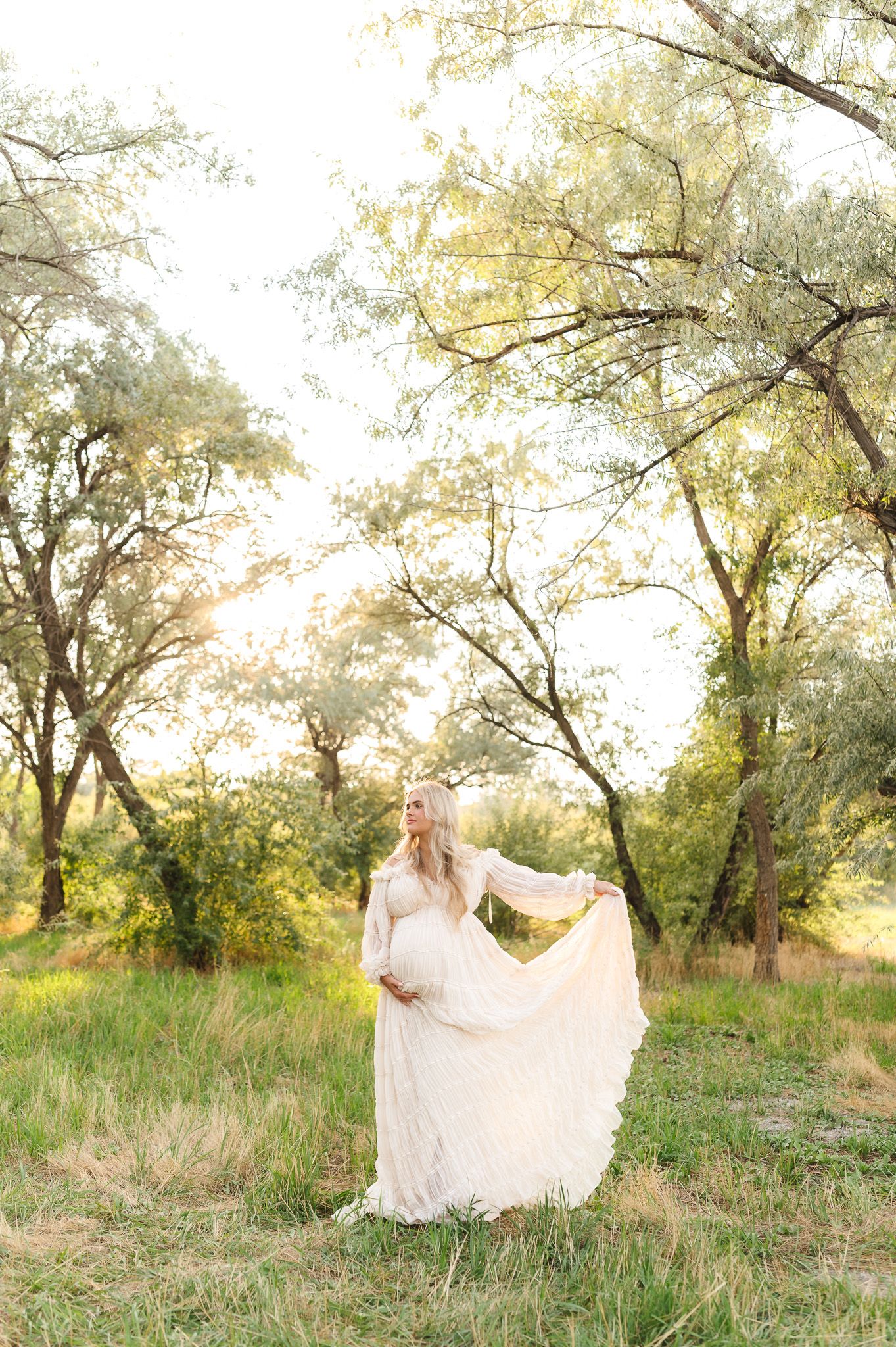
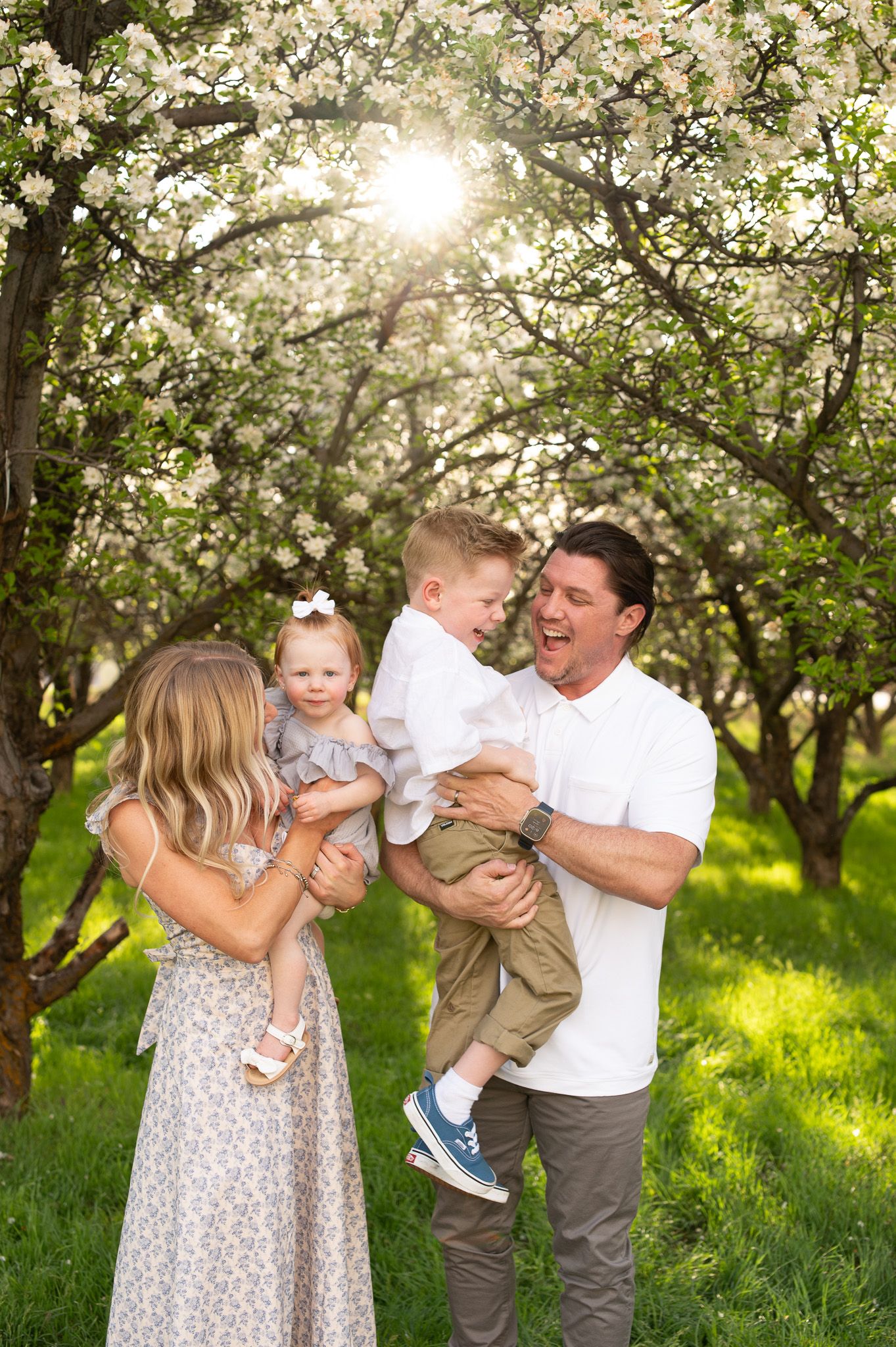
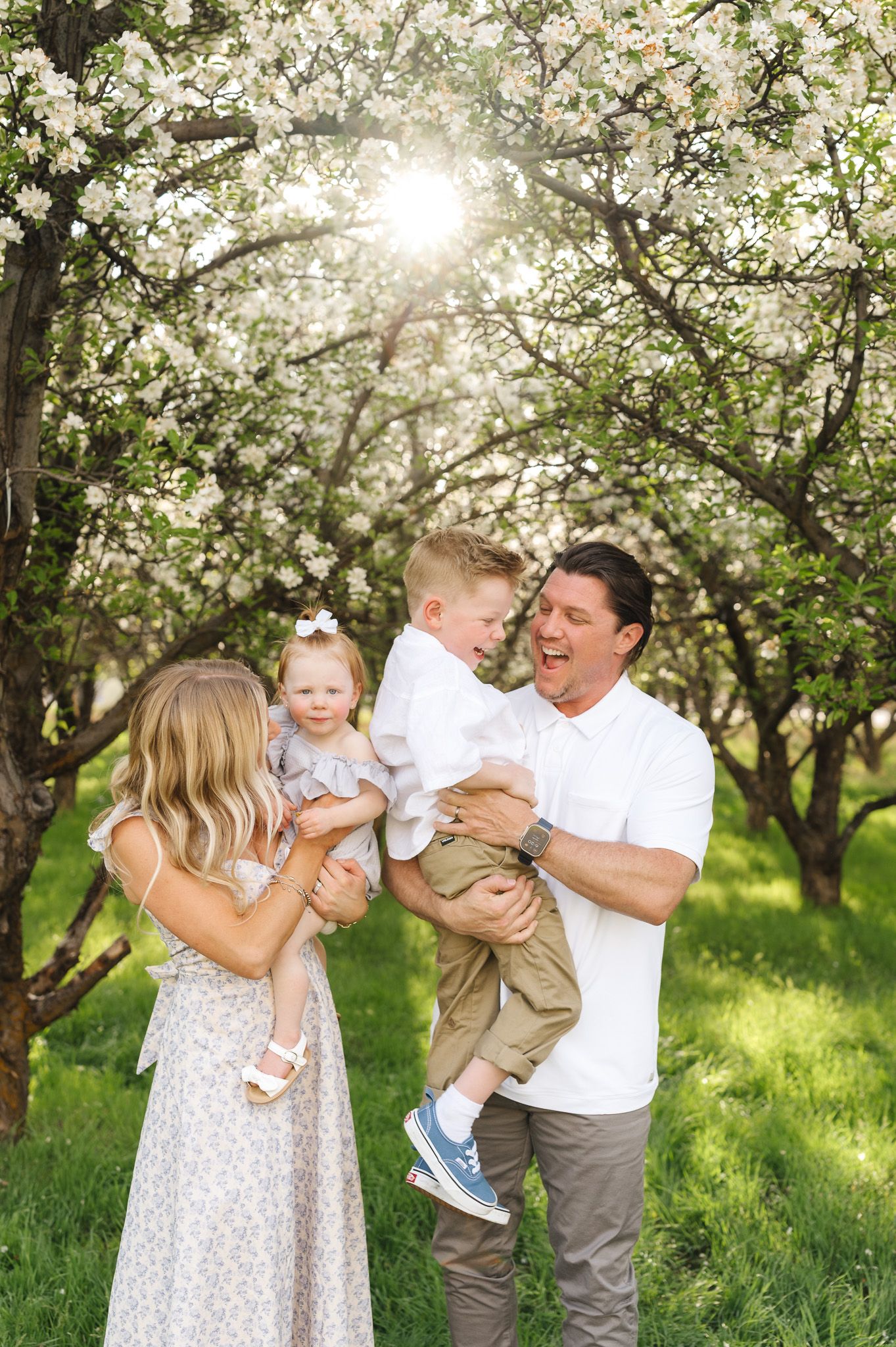
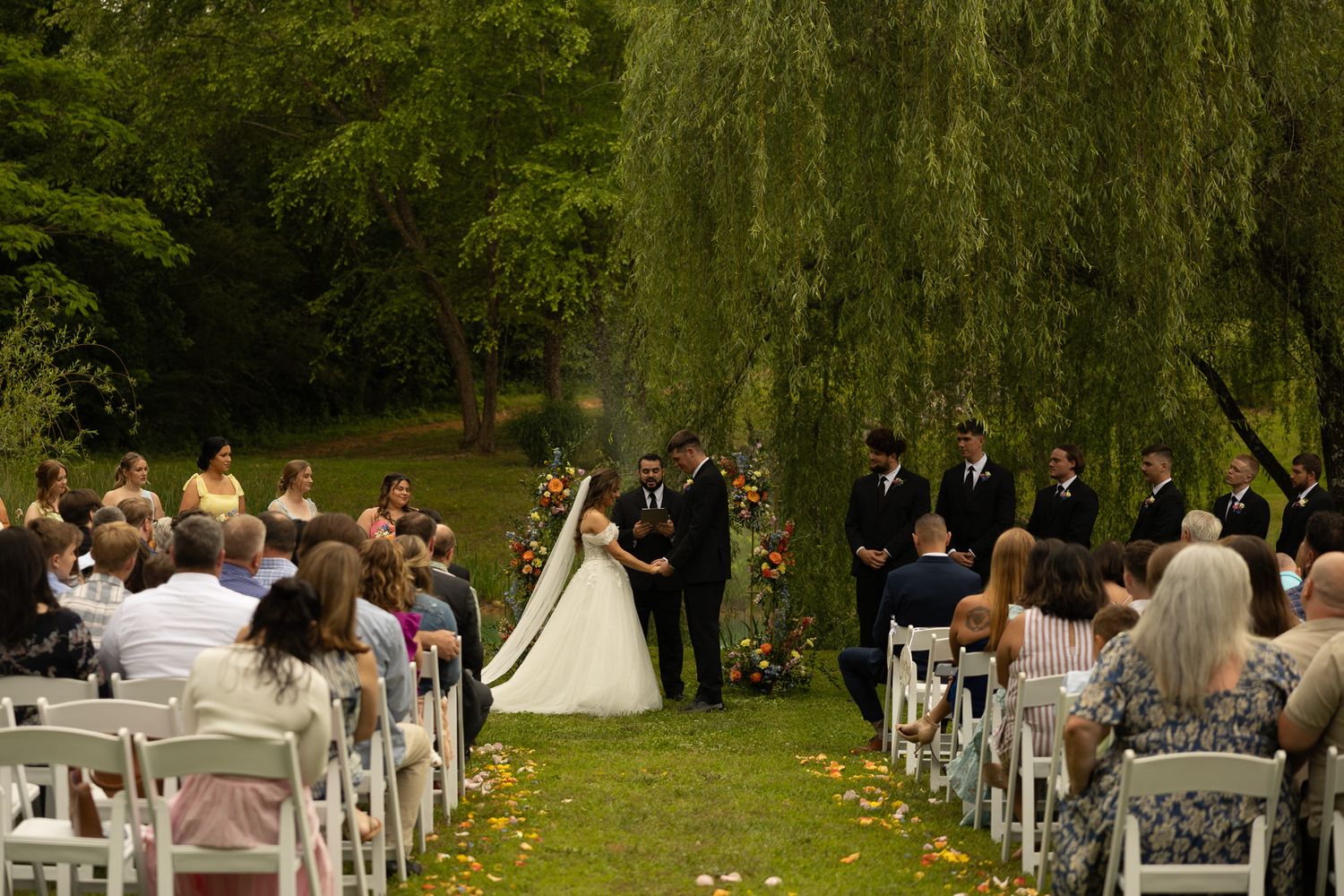
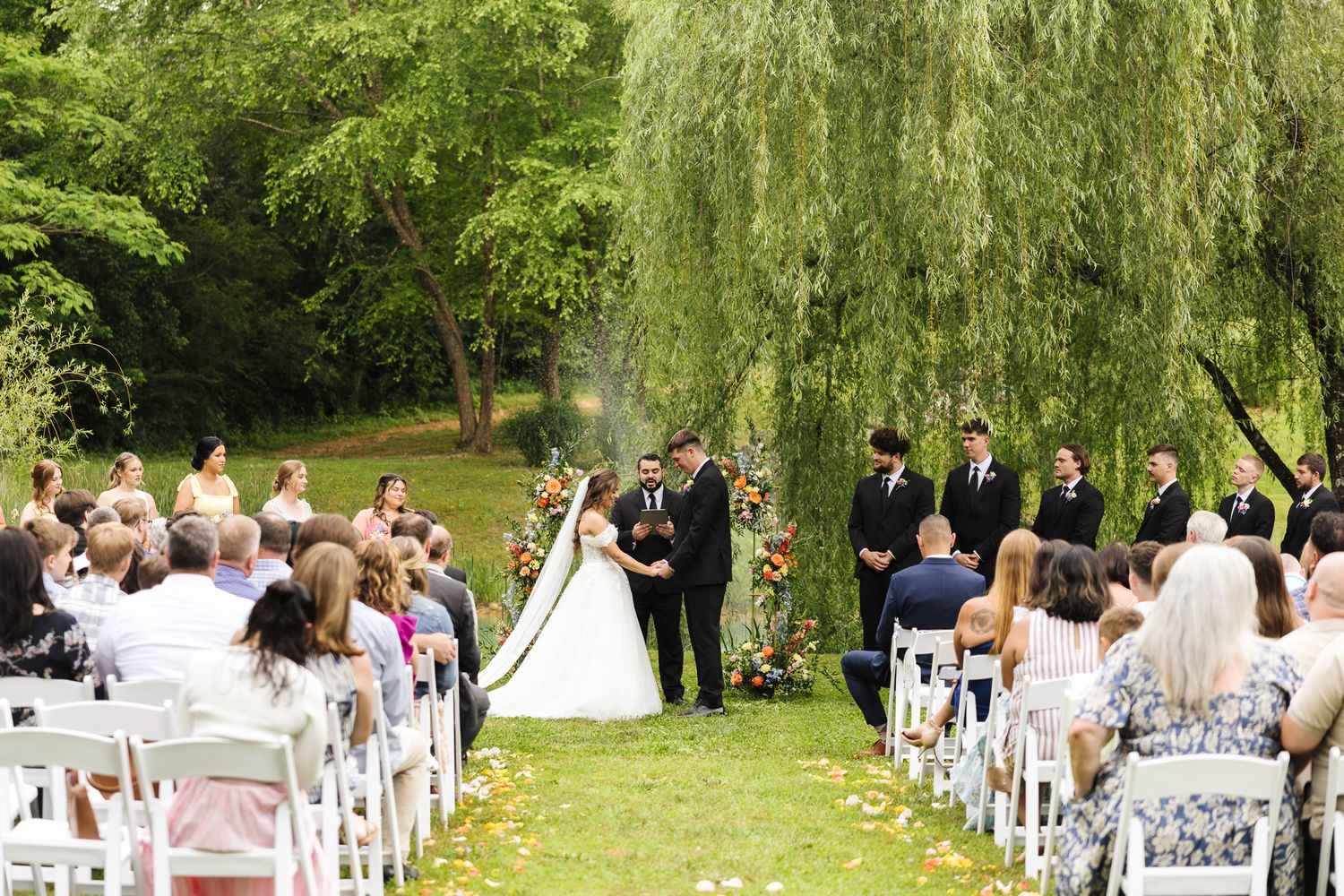
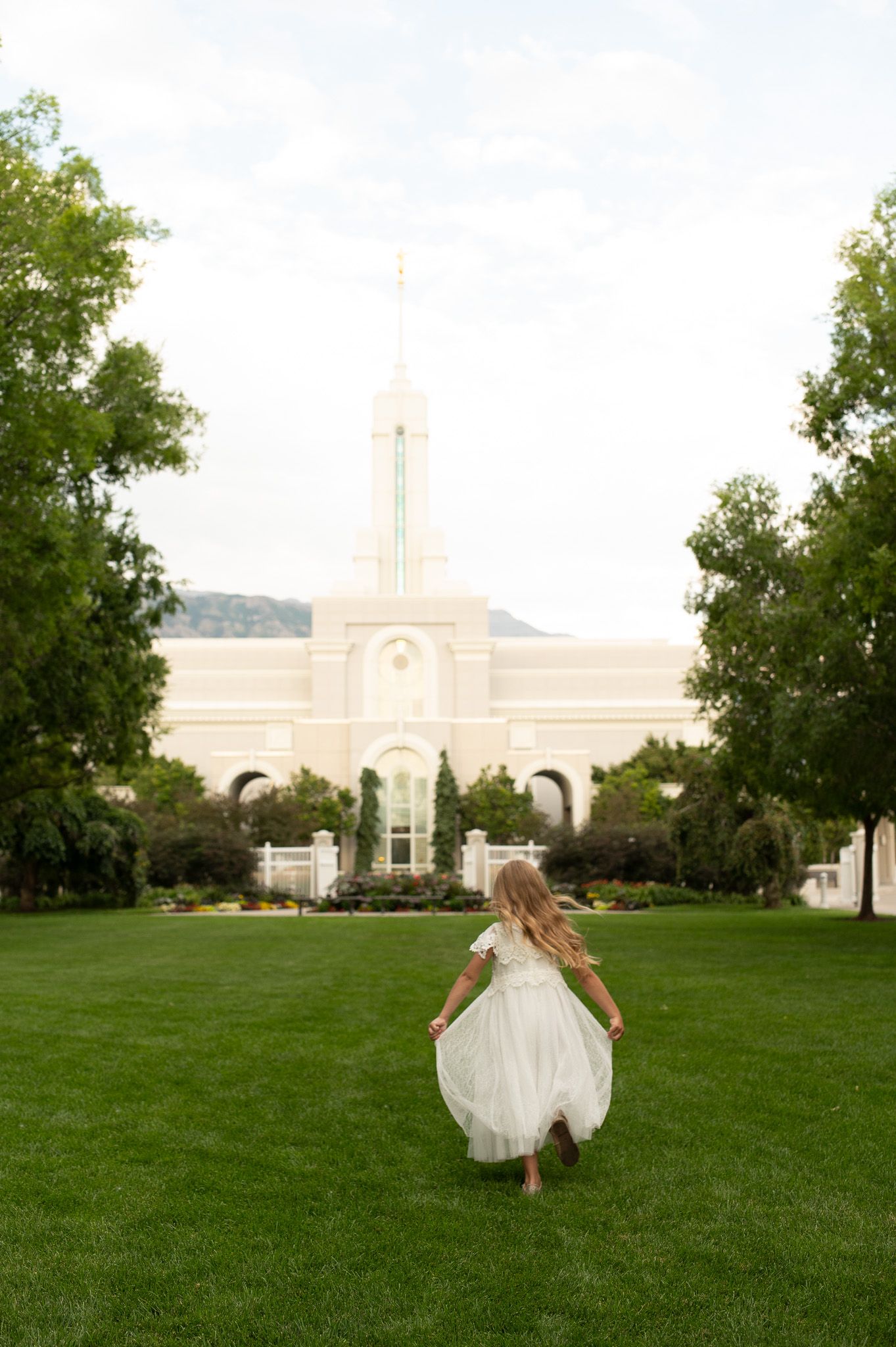
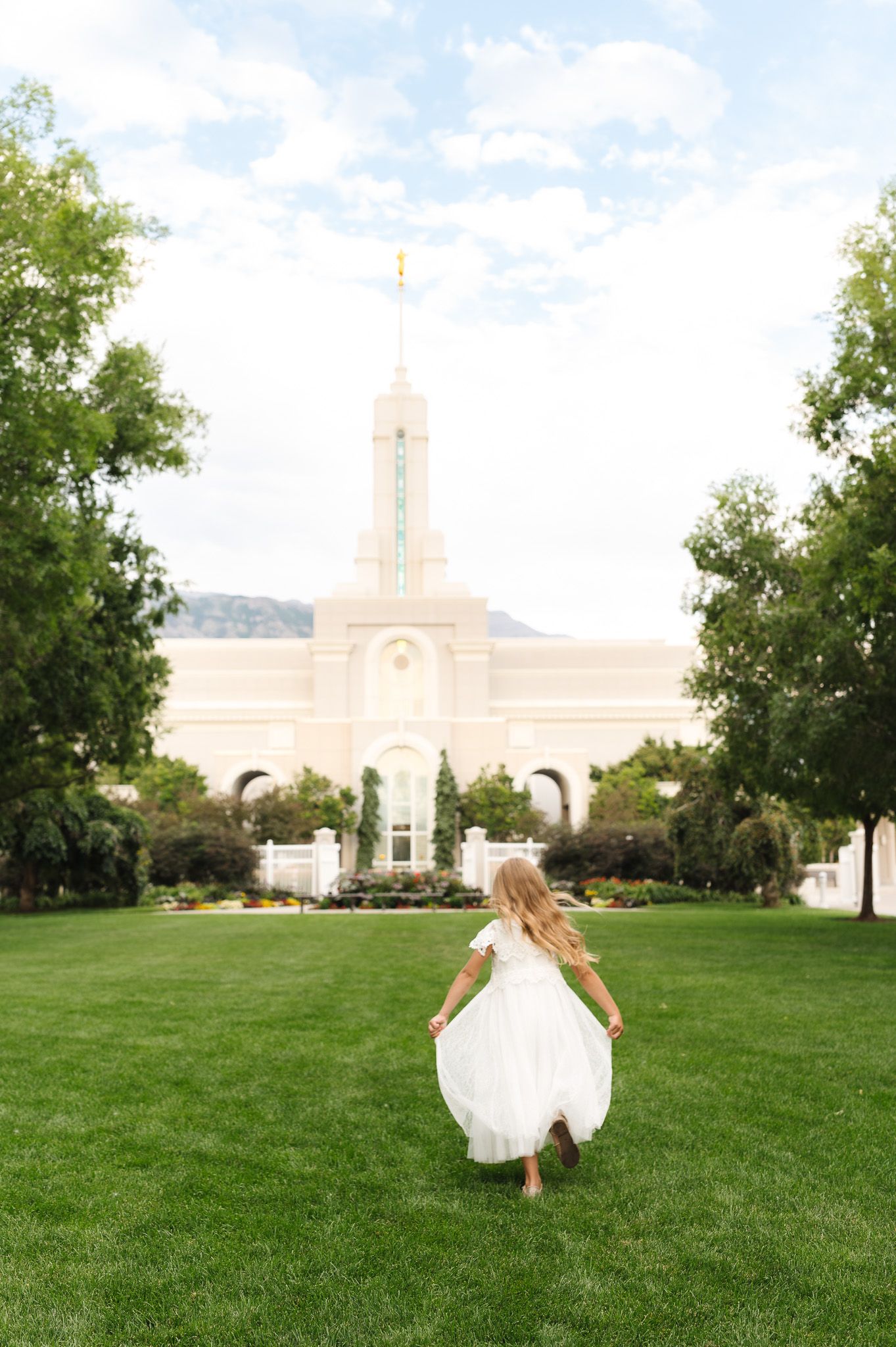
Here’s what this looks like in real images before and after these adjustments—and if you want a faster starting point for fixing green tones, you can check out my presets here.
BEFORE VS. AFTER
Here’s what this actually looks like in real images before and after these adjustments:

The Easier Way to Handle This
Once you start noticing how often green tones show up, you realize you’re making the same corrections over and over again.
If you find yourself doing this often, this is exactly why I created presets specifically for green-heavy outdoor environments.
They’re designed to give you a clean, consistent starting point—so instead of fixing green tones from scratch in every image, you can make small, simple refinements instead.
You can check out my presets for green-heavy outdoor sessions here.
Green skin tones are one of those issues that can make a great photo feel slightly wrong—but once you know how to correct them, they become quick and predictable to fix.
Start with white balance, adjust tint carefully, and use HSL only when needed.
And most importantly—aim for natural skin, not “perfectly neutral” skin.
Because the goal is always the same:
👉 true-to-color images that still feel real, warm, and alive.
If you want to see how this applies across different lighting situations—from harsh sunlight to open shade to snow—you might also like this:
Edit Bright, Clean, True-to-Color Photos in Lightroom.
If you’re looking to streamline your editing, you can explore my presets for photographers here.
If you’ve found this helpful and want more personalized guidance, I also offer 1:1 mentorships where we can go deeper into your editing, workflow, and shooting decisions in real time. If you’re interested in a mentorship, you can learn more here.
If this was helpful, you can save it on Pinterest to come back to later.
